
 What's new?
Chapter 1: The Growing Pain
Every online store needs a strategy for order archiving, because there is a dirty secret hiding in most databases: thousands of old orders clogging up performance.
Think about it. A store running for five years might have 50,000 completed orders. Customer bought something in 2019. Package delivered. Review left. Transaction done. That order will never change. Nobody will edit it. Nobody will refund it. It just… sits there.
Multiply this by every order, every day, every year.
The database grows fat. Backups take hours. Simple queries crawl. The website slows down. Hosting costs climb. All because of historical data collecting digital dust.

Store owners faced an ugly choice: delete old orders and lose business history, or keep everything and suffer the consequences.
Archive Master offered a third path: move old orders somewhere else. Keep them accessible, but out of the way. Like moving childhood photos from your phone to a storage drive, still yours, just not clogging up daily life.
Table of Contents
Chapter 2: The Storage Question
Where should these archived orders live?
Remote databases work, but they’re technical. Store owners aren’t database administrators. They don’t want to provision servers, manage connections, or worry about uptime.
Local files work too, but they’re fragile. Server crashes. Migrations fail. Hosting providers make mistakes. One bad day and years of order history vanishes.
We needed something familiar. Something reliable. Something people already trusted.
Google Drive.
Nearly everyone has a Google account. Most already use Drive for documents, photos, backups. It’s free (up to 15GB). It’s reliable (Google’s infrastructure). It’s familiar (no learning curve).
The vision was simple: archived orders automatically sync to your Google Drive. No configuration. No maintenance. Just connect once and forget about it.
Simple vision. Complicated reality.
Chapter 3: The Authentication Wall
Google protects your Drive fiercely. Any app wanting access must prove its identity through a system called OAuth2, a digital handshake ensuring you explicitly approve access.
Here’s how OAuth2 normally works:
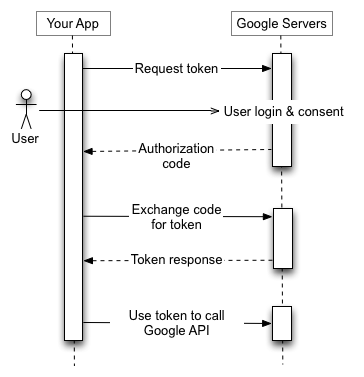
- App redirects you to Google
- Google asks: “Do you trust this app?”
- You click “Allow”
- Google sends approval tokens back to the app
- App uses tokens to access your Drive
Sounds straightforward. But there’s a catch that nearly killed this feature.
Google requires apps to pre-register every domain that will use authentication. It’s a security measure—prevents malicious sites from hijacking the approval flow.
Archive Master is a WordPress plugin. It could be installed on:
- small-bakery-shop.com
- mega-electronics-store.net
- aunt-martha-crafts.org
- Literally any domain in existence
We can’t pre-register millions of unknown domains. Google won’t allow authentication from unregistered sites. Dead end.
It’s like needing a visitor badge for a building, but security requires knowing your home address in advance, before you even decide to visit.
Chapter 4: The Bridge
We couldn’t register every possible domain. But we could register one domain that every site talks through.
Enter the middleware, a small application running on our own server, acting as a trusted translator between WordPress sites and Google.
Here’s the new flow:
Your WordPress Site ←→ Our Middleware ←→ Google
Step 1: You click “Connect to Google Drive” in Archive Master settings.
Step 2: Your site redirects to our middleware, which redirects to Google’s approval screen.
Step 3: Google shows the familiar “Allow access?” prompt. You approve.
Step 4: Google sends tokens to our middleware (a registered, trusted domain).
Step 5: Our middleware passes those tokens back to your WordPress site.
Step 6: Your site stores the tokens securely in its database.
The middleware never stores your tokens. It’s just a passthrough—receiving from Google, forwarding to you, forgetting immediately. Like a postal worker who delivers letters but never reads them.
After this one-time setup, your WordPress site talks directly to Google Drive. The middleware steps aside. Your tokens, your connection, your data.
Chapter 5: The Expiring Keys
Those tokens from Google? They come with an expiration date. Usually about one hour.
It’s Google’s safety mechanism. If someone steals your token, the damage is limited—one hour and it’s useless. But for legitimate apps, it means constantly getting fresh tokens.
Fortunately, Google provides two types of tokens:
- Access Token — The actual key to your Drive. Expires in ~1 hour.
- Refresh Token — A master key that generates new access tokens. Lasts much longer.
Archive Master handles this silently. Before every sync, it checks:
Is access token still fresh?

    ↓

Yes (more than 5 minutes left) → Use it

No (expired or expiring soon) → Use refresh token to get new access token
The 5-minute buffer prevents awkward mid-upload expirations. No cutting it close.
When refreshing, the plugin contacts our middleware again (since Google requires registered domains). Middleware asks Google for a fresh access token, passes it back, plugin saves it.
You never see this dance. Orders sync. Tokens refresh. Everything just works.
Chapter 6: The Privacy Shield
Now imagine thousands of stores using Archive Master. All backing up to Google Drive. All creating files.
If every backup file was named archive-master-orders.zip, chaos ensues:
- Developer managing 10 client sites on one Google account—which backup belongs to which store?
- Someone accidentally shares their Drive folder—file names immediately reveal “this is order data”
- Malicious actors know exactly what to look for—predictable targets
Predictable naming is a security hole disguised as convenience.
The Solution: Unique Fingerprints
When Archive Master activates on your site, it generates a cryptographic hash—a long string of random characters unique to your installation.
Instead of: archive-master-orders.db
You get: a8f3b2c1d9e7f4a2b6c8.db
This hash is:
- Random — No pattern to guess
- Unique — Generated specifically for your site
- Permanent — Created once, used forever
- Secret — Stored only in your WordPress database
The hash flows through everything:
Local database:    a8f3b2c1d9e7f4a2b6c8.db

Compressed file:   a8f3b2c1d9e7f4a2b6c8.zip

Google Drive file: a8f3b2c1d9e7f4a2b6c8.zip
Even if someone accesses your Google Drive folder, they see meaningless strings. No indication it contains order data. No way to identify which store it belongs to. No pattern to exploit.
Three stores backing up to the same Google account:
Store A: f7a2c9d1e4b8.zip

Store B: 3e8f1a6c9d2b.zip

Store C: b4d7e2a9f1c6.zip
Anonymous. Unguessable. Untargetable.
Even we, the developers, couldn’t identify your backup if we saw it. That’s not a limitation—that’s the design.
Chapter 7: The Sync Dance
Here’s where engineering meets elegance.
📦 Complete Sync Pipeline
From database change to secure cloud backup — every step automated and optimized
Found? Use it • Not found? Create it
New? CREATE new file (POST)
“parents”: [“folder_id”]}
• Record timestamp “Last synced: just now”
• Delete temporary local ZIP file
The Trigger
Archive Master listens for a WordPress signal: archm_sqlite_changed. Whenever the archived orders database changes—new orders archived, old ones removed—this signal fires.
Think of it as a doorbell. Package arrives (data changes), bell rings (signal fires), someone answers (sync begins).
But first, two questions:
- Is Google Drive selected as storage?
- Do we have valid credentials?
Both must be yes. Otherwise, the doorbell rings but nobody’s home.
Preparing the Package
The SQLite database file lives somewhere like:
/wp-content/archive-master-db/a8f3b2c1d9e7f4a2b6c8.db
Raw database files are risky to transfer—large, potentially corruptible mid-upload. So Archive Master compresses it first.
Database file → ZIP compression → Upload-ready package
Same hash name, .zip extension. Clean and compact.
Finding Home
Before uploading, the plugin ensures a proper home exists in Google Drive.
Search for "Archive Master Backup" folder
    ↓
Found? → Use it
Not found? → Create it
All backups live in this dedicated folder. Organized. Tidy. Not scattered across Drive root like digital confetti.
Smart Uploading
Now the clever part. The plugin checks: “Does this file already exist?”
Search for a8f3b2c1d9e7f4a2b6c8.zip in backup folder
    ↓
Exists? → Update the existing file (PATCH)
New? → Create new file (POST)
No duplicate files piling up. One file, continuously updated. Clean.
The Upload Itself
Google's API expects a specific format—multipart upload. Like mailing a package with a label attached:
Part 1: The Label (Metadata)
json
{
  "name": "a8f3b2c1d9e7f4a2b6c8.zip",
  "parents": ["backup_folder_id"]
}

**Part 2: The Package (File Content)**
[Binary ZIP data]

Both parts bundled together, sent with authorization headers. Google receives, processes, stores.

### Confirmation and Cleanup
Google responds with success. The plugin then:
1. Saves the file ID — For future updates and recovery
2. Records timestamp — “Last synced: just now”
3. Deletes local ZIP — Temporary file served its purpose
If upload fails? ZIP still gets deleted. No orphaned files cluttering the server.
Chapter 8: Traffic Controller
🚦 The Traffic Controller
Smart throttling prevents chaos when 100 sync requests arrive simultaneously
Nobody gets through smoothly.
No queuing, no waiting
Final state will be captured
Set sync-in-progress flag
Upload to Google Drive
Clear sync-in-progress flag
New request arrives
↓
Too recent → Skip
Only the final state matters — everything in between is redundant.
Google stays happy
No backlog processing
Final state captured
Resources preserved
The Stampede Problem
Picture a store owner archiving 100 orders at once. Each archive modifies the database. Each modification fires the sync signal. Suddenly, 100 sync requests pile up.
WordPress isn’t truly asynchronous—it doesn’t handle parallel background tasks gracefully. Those 100 requests don’t politely wait in line. They all try pushing through simultaneously.
The result:
Same file uploads 100 times — Bandwidth wasted

Google rate limits kick in — Requests rejected

Uploads overlap — File corrupted mid-write

Server strains — Memory spikes, CPU screams
It’s 100 people trying to squeeze through a single door at once. Nobody gets through smoothly.
The Bouncer
Throttling acts as crowd control. It checks: “Is someone already syncing?”
Sync request arrives

    ↓

Another sync in progress?

    ↓

Yes → Walk away, current sync handles it

No  → Enter, lock door behind you

    ↓

Sync completes → Unlock door
A simple flag tracks status. Sync starts, flag up. Sync ends, flag down. Any request seeing the flag up simply leaves—no queuing, no waiting.
Why Skip Instead of Queue?
Queuing sounds logical—line everyone up, process sequentially. But consider:
If 100 changes happen in 10 seconds, do you need 100 uploads? No. Only the final state matters. The last sync captures everything previous syncs would have captured anyway.
Skipping redundant syncs means:
Fewer API calls — Google stays happy

Faster completion — No backlog processing

Identical result — Final database state uploaded regardless
Time Buffer
The throttle also watches the clock. Sync happened 3 seconds ago? Another one is probably unnecessary.
Last sync: 3 seconds ago
New request arrives

    ↓

Too recent → Skip
Catches rapid-fire changes that slip past the “currently syncing” check.
The Outcome
One hundred database changes might trigger one or two actual uploads. Resources preserved. Server relaxed. Google unbothered. Data safe.
Chapter 9: Safety Net
🛡️ The Safety Net
When disaster strikes, automatic recovery saves the day
With Google Drive sync? It’s just Tuesday.
Do we have a backup?
Recovery mode activated
From Google Drive
Restore to original path
Business resumes
No manual steps. No emergency buttons. No frantic support tickets.
It’s a spare key stored at a trusted location.
When Disaster Strikes
Servers fail. Hard drives die. Migrations go sideways. Hosting providers fumble restores. Someone runs `rm -rf` in the wrong directory.
One morning, the store owner logs in. Their archived orders database? Gone. Vanished. Years of historical data erased.
Without backups, this is catastrophic—data lost forever.
With Google Drive sync? It’s Tuesday.
The Recovery Trigger
When Archive Master needs the database but can’t find it locally, panic doesn’t set in. A question does:
“Do we have a backup in Google Drive?”
Load archived orders

    ↓

Local file exists?

    ↓

Yes → Use it normally

No  → Check Google Drive

        ↓

      Backup found? → Download → Extract → Continue

      Nothing there? → Fresh start
The cloud backup becomes the rescue rope.
The Recovery Process
Detection: Plugin looks for the database at its expected path. Nothing there. Recovery mode activates.
Location: Using the stored file ID from the last successful sync, the plugin asks Google Drive: “Is this file still there?”
Download: Found. The plugin downloads the ZIP file using the same access token, same authentication—just reversed direction.
Google Drive → Download → Local serverExtraction: ZIP decompresses. SQLite database file returns to its original path. The unique hash ensures it lands exactly where it belongs.
Resumption: Plugin continues normally. Archived orders accessible. Future syncs resume. Life goes on.
The Invisible Hero
This recovery happens automatically. No manual steps. No emergency buttons. No frantic support tickets.
The store owner might never realize their server lost data. They just see their archived orders, exactly as expected. Business continues.
It’s a spare key stored at a trusted location. You forget it exists until you’re locked out. Then it saves everything.
The Complete Circle
Healthy operation:
Local changes → Sync to Google Drive → Backup current

Disaster strikes:

Local file missing → Download from Google Drive → Restore complete

Back to healthy operation:

Local changes → Sync to Google Drive → Backup current
Chapter 10: The Bigger Picture
Archive Master’s Google Drive integration isn’t just a feature. It’s a philosophy.
Simple for users. Connect once, forget forever. No configuration panels with 47 options. No technical decisions about servers, APIs, or protocols. Click, approve, done.
Robust in engineering. OAuth2 authentication through trusted middleware. Automatic token refresh. Throttled syncing. Intelligent updates. Silent recovery.
Paranoid about privacy. Unique hashes for every installation. Anonymous filenames. No predictable patterns. Even developers can’t identify your data.
Resilient by design. Local data syncs up. Cloud data recovers down. Neither location alone is a single point of failure.
The Story Continues
Every day, store owners archive old orders without thinking about where they go. Database files compress, upload, and update in Google Drive silently. Tokens refresh automatically. Throttles prevent chaos. Unique hashes guard privacy.
And somewhere, someday, a server will fail. Data will disappear. A store owner will log in expecting the worst.
They’ll find their archived orders exactly where they left them—restored from Google Drive, waiting patiently, completely unaware of the drama that happened behind the scenes.
That’s not magic. That’s engineering.
That’s Archive Master.